Windows 11 has been met with mixed reviews, with some users considering it a mere re-skin of Windows 10, riddled with compromises.
However, despite these critiques, the OS has introduced some exclusive features, many of which cater to the gaming community.
Unfortunately, one of these features, Auto HDR, has recently caused issues, prompting Microsoft to block the latest Windows 11 update for affected systems.
Here’s everything you need to know about the issue and how to manage it.
The Issue: Auto HDR Bug
Microsoft recently revealed a bug in Auto HDR, a system feature that enhances visual quality by converting Standard Dynamic Range (SDR) content to High Dynamic Range (HDR) on compatible hardware.
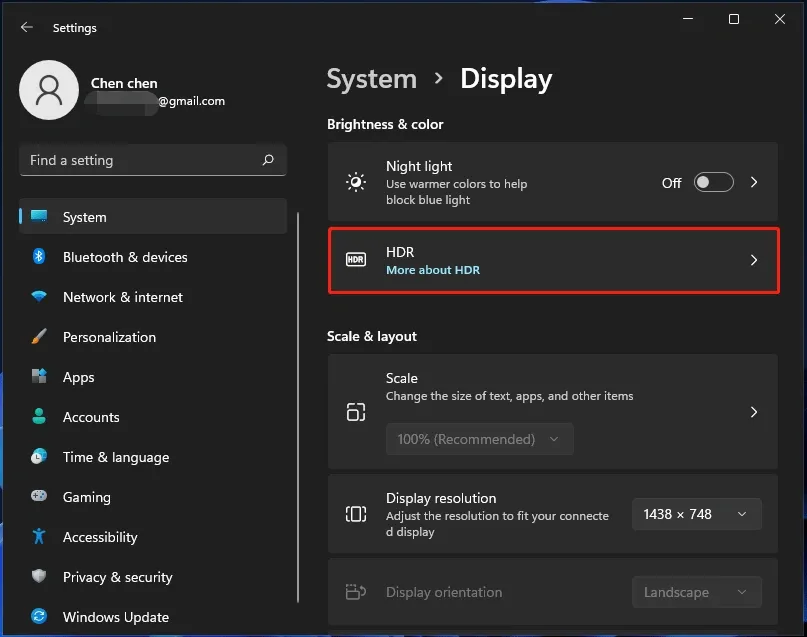
While this feature is designed to improve the gaming experience, it has now become a source of frustration for many users. The bug causes:
-
Incorrect Colors: Games may display distorted or inaccurate colors.
-
Game Crashes: Some games may freeze or stop responding altogether.
Microsoft’s Compatibility Hold
To prevent this issue from affecting users, Microsoft has placed a compatibility hold on all devices with Auto HDR enabled. This means:
No Windows 11, version 24H2 Update: Devices with Auto HDR turned on will not receive the latest Windows 11 update through the Windows Update release channel.
IT Admins: If you're an IT administrator, you can track the issue using the safeguard ID: 55382406 via Windows Update for Business reports.
What You Can Do: How to Safely Update
While Microsoft is working on a fix, the immediate solution is to turn off Auto HDR if you want to proceed with the update to version 24H2.
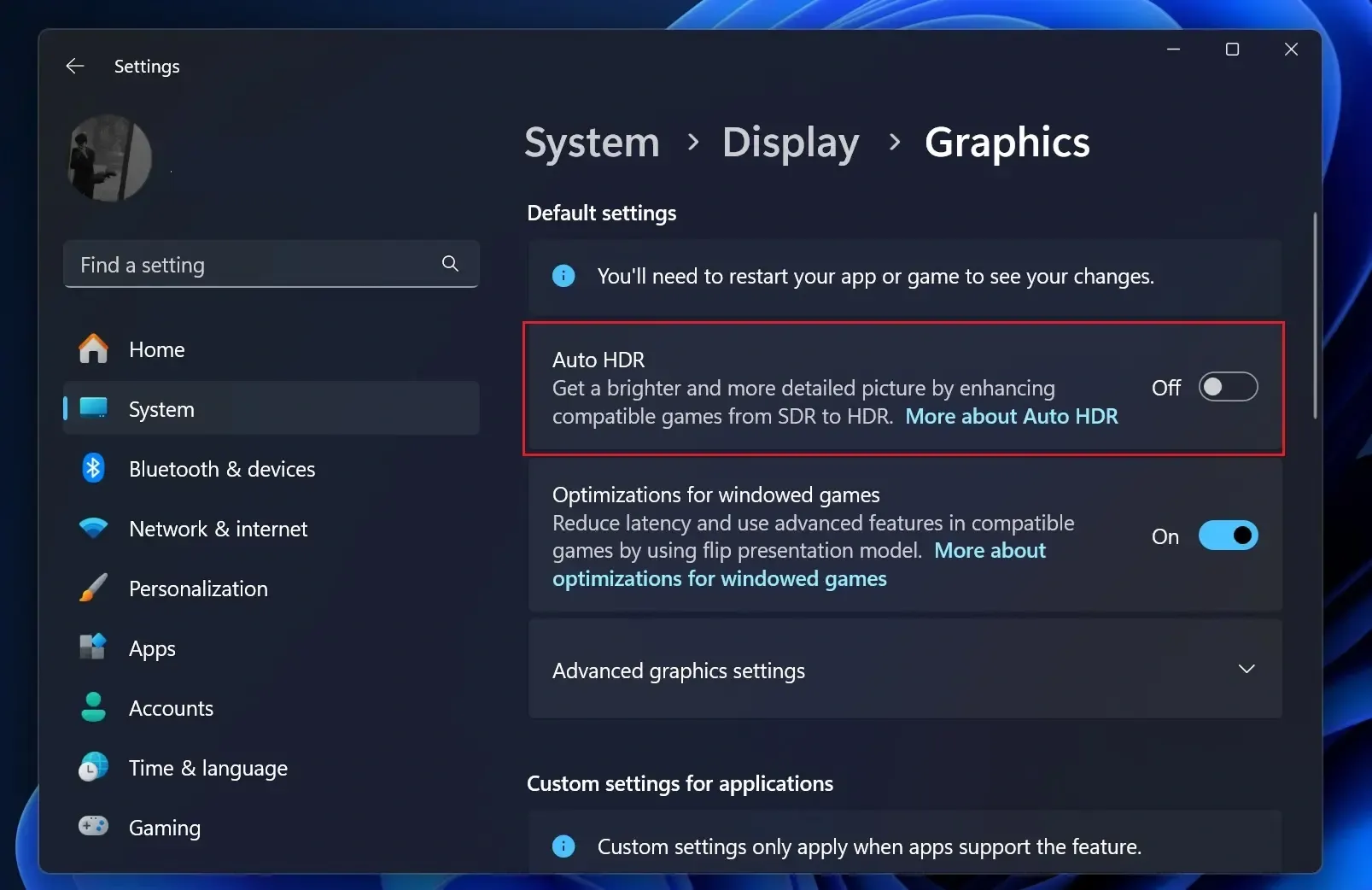
Here’s how to do it:
-
Go to Settings: Open the Windows Settings menu.
-
Navigate to System > Display: Find the display settings.
-
Turn Off Auto HDR: Under the “Use HDR” section, toggle off Auto HDR.
What’s Next: The Uncertainty
At this point, Microsoft has not clarified what will happen once users update to version 24H2 with Auto HDR turned on.
The company has not specified whether the bug will be fixed or if users will be able to use Auto HDR after the update.
Key Takeaways:
-
Auto HDR Bug: Causes incorrect colors and game crashes.
-
Compatibility Hold: Devices with Auto HDR enabled won't receive the latest update.
-
Temporary Fix: Turn off Auto HDR to update to Windows 11, version 24H2.
-
No Clear Resolution: Microsoft is working on a fix but hasn’t provided details on the post-update experience.
While this bug is frustrating, Microsoft is actively addressing it.
For now, disabling Auto HDR is your best bet to ensure you’re able to update to the latest version of Windows 11 without issues.
Stay tuned for further updates as Microsoft continues to resolve the problem.